Setup Samba AD DC on Debian
This is the second post in my series about setting up Samba AD and FreeRADIUS on Debian.
Next step: Setting up FreeRadius on Debian running Samba AD
Previous step: Install Debian as a server
Getting started
Note: I’m going to assume you already have a domain and static IP in mind. For this guide I’m going to use 10.0.2.15 and example.lan
Step 1: Enable Debian backports
Open /etc/apt/sources.list.d/debian-backports.sources with:
sudo nano /etc/apt/sources.list.d/debian-backports.sources
and paste in the following
Types: deb deb-src
URIs: http://deb.debian.org/debian
Suites: trixie-backports
Components: main
Enabled: yes
Signed-By: /usr/share/keyrings/debian-archive-keyring.gpg
To save and exit press ctrl_s followed by ctrl+x. If you are reading this in the future Debian Trixie may be previous release. To confirm that you are running Trixie run cat /etc/os-release
Step 2: Switch to Network Manager and set static IP
In order to Samba to work, it must have a static IP.
First, install Network Manager and uninstall dhcpcd (dhcpcd kept overwritting resolv.conf during dns configuration)
sudo apt update
sudo apt install NetworkManager -y
sudo apt remove dhcpcd-base -y
Then open up the NetworkManager.conf with and make sure the following line is present and set to true.
sudo nano /etc/NetworkManager/NetworkManager.conf
...
managed=true
Save with ctrl-s and exit with ctrl-x
Next, we need to configure Network Manager. Make sure you configure the correct device
ip a #shows your ethernet device name. Mine is enp0s3
sudo nmcli d connect enp0s3
sudo nmcli connection modify enp0s3 ipv4.method manual ipv4.addresses 10.0.2.15/24 ipv4.gateway 10.0.2.2 #set static IP
sudo systemctl restart networking
Be mindful of duplicate IPs when setting a static IP. Best practice is to reserve an IP in your DHCP server as well.
Step 3: Install Samba AD DC
Run the following:
sudo apt install samba-ad-dc krb5-user bind9-dnsutils -t trixie-backports -y
If you are prompted to configure Kerberos you can leave everything as default.
Step 4: Disable unneeded and conflicting services
Run the following:
sudo systemctl disable --now smbd nmbd winbind
sudo systemctl mask smbd nmbd winbind
Step 5: Provision the domain
First delete the default configuration:
sudo rm /etc/samba/smb.conf
Then provision the Active Directory domain:
sudo samba-tool domain provision --use-rfc2307 --interactive
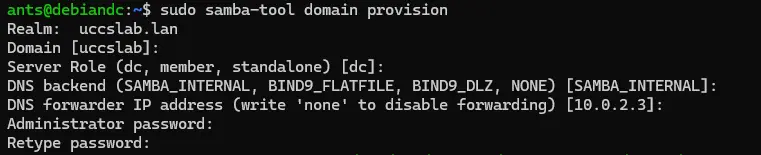
This command will take a little time to run but at the end you will have a Active Directory domain. Do not continue if this command fails. For the DNS forwarder make sure you point it to a DNS server somewhere else on the internet.
For more information: https://wiki.samba.org/index.php/Setting_up_Samba_as_an_Active_Directory_Domain_Controller
Step 6: Configure DNS
In order to Samba to work, all DNS queries must go though Samba. First, disable Network Manager DNS
sudo nano /etc/NetworkManager/conf.d/90-dns-none.conf
...
[main]
dns=none
Then restart NetworkManager with
sudo systemctl restart NetworkManager
It is now time to configure resolv.conf
sudo rm /etc/resolv.conf
sudo nano /etc/resolv.conf
and paste in the following (replace example.lan with your realm name)
nameserver 10.0.2.15
search example.lan
Next, we need to update /etc/hosts (replace DNS and IP with your DNS name and IP)
sudo nano /etc/hosts
...
10.0.2.15       debiandc debiandc.example.lan
127.0.0.1       localhost

# The following lines are desirable for IPv6 capable hosts
::1     localhost ip6-localhost ip6-loopback
ff02::1 ip6-allnodes
ff02::2 ip6-allrouters
Save with ctrl-s and exit with ctrl-x
If DNS breaks you may need to restart Samba
sudo systemctl restart samba-ad-dc
Step 7: Start Samba AD DC
Start Samba with:
sudo systemctl start samba-ad-dc
Step 8: Configure kerberos
sudo cp -f /var/lib/samba/private/krb5.conf /etc/krb5.conf
This configures Kerberos on the Debian system to use Samba.
Step 9: Configure Chrony
First, install Chony
sudo systemctl stop systemd-timesyncd
sudo systemctl mask systemd-timesyncd
sudo apt install chrony -y
Then configure the ntp_signed directory
sudo chown root:_chrony /var/lib/samba/ntp_signd/
sudo chmod 750 /var/lib/samba/ntp_signd/
Next configure Chrony with the following configuration (replace the IP with yours)
sudo nano /etc/chrony/chrony.conf
...
#Paste this in

# Welcome to the chrony configuration file. See chrony.conf(5) for more
# information about usuable directives.

# This directive specify the location of the file containing ID/key pairs for
# NTP authentication.
keyfile /etc/chrony/chrony.keys

# This directive specify the file into which chronyd will store the rate
# information.
driftfile /var/lib/chrony/chrony.drift

# Uncomment the following line to turn logging on.
#log tracking measurements statistics

# Log files location.
logdir /var/log/chrony

# Stop bad estimates upsetting machine clock.
maxupdateskew 100.0

# This directive tells 'chronyd' to parse the 'adjtime' file to find out if the
# real-time clock keeps local time or UTC. It overrides the 'rtconutc' directive.
hwclockfile /etc/adjtime

# This directive enables kernel synchronisation (every 11 minutes) of the
# real-time clock. Note that it can’t be used along with the 'rtcfile' directive.
rtcsync

# Step the system clock instead of slewing it if the adjustment is larger than
# one second, but only in the first three clock updates.
makestep 1 3

# ipaddress of this DC - CHANGEME
bindcmdaddress 10.0.2.15

# The source, where we are receiving the time from
server 0.us.pool.ntp.org	iburst
server 1.us.pool.ntp.org	iburst
server 2.us.pool.ntp.org	iburst

# dns netmask
allow 0.0.0.0/0

ntpsigndsocket  /usr/local/samba/var/lib/ntp_signd
Now we need to start it
sudo systemctl enable chrony
sudo systemctl start chrony
Note: If you are running Debian with Samba in a VM the VM may end up being paused if the host goes to sleep. This can result in a large clock screw that will cause issues. If you ever run into a issue caused by the system having the wrong time it usually can be corrected by restarting Chrony.
Step 10: Perform health checks
Now that Samba AD DC is running it is time to check to see if everything is working. First, check to see if Samba AD DC is running.
sudo systemctl status samba-ad-dc
It should look like this:
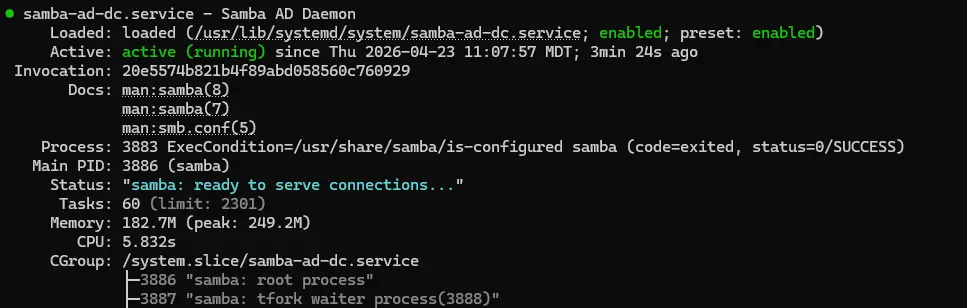
Next, check to see if local DNS is working.
dig @127.0.0.1 google.com
This should return the IP address for google.com
Lastly, check to see if you can get a Kerberos ticket.
kinit Administrator
Congrats, you now have a working DC
Step 11: Enable local login with AD credentials (optional)
While we have a working DC, some additional steps are needed for AD login. More specifically, we need to configure winbind to map Windows users to UNIX users. Please note that SSSD AD authentication is not compatible with Winbind and should not be setup on the same system.
First, install dependencies
sudo apt install winbind libnss-winbind libpam-winbind -t trixie-backports
Then edit smb.conf to configure winbind
sudo nano /etc/samba/smb.conf
...
[global]
...
    # - add this under global -
	# Configure homedir and shell
	template shell = /bin/bash
    template homedir = /home/%U
Then restart samba ad and enable home directory creation
sudo systemctl restart samba-ad-dc
sudo pam-auth-update --enable mkhomedir
You now should be able to login with AD credentials
id [username]
su - [username]
Step 12: Managing users and groups with samba-tool (optional)
Here are some common user commands
sudo samba-tool user list #list users
sudo samba-tool user add username #add user

sudo samba-tool group list #list groups
sudo samba-tool group add groupname #create group
sudo samba-tool group addmembers groupname username #add user to group
Step 13: Administering Samba AD with Microsoft RSAT tools (optional)
First, on a Windows device, install the tools with Powershell:
Get-WindowsCapability -Name Rsat* -Online | Add-WindowsCapability -Online
If your machine is not domain joined to Samba you will need to manually connect to the DC
Step 14: Raise functional level to 2016 (optional)
In Active directory, the 2016 functional level was introduced with Windows server 2016 and was the latest version until the release of Windows server 2025. The 2016 functional level introduces several new features such as group managed service accounts. This feature is still considered experimental by the Samba developers
To start, edit the smb.conf file
sudo nano /etc/samba/smb.conf

and add the following line under [global]

[global]
...
	ad dc functional level = 2016
Press ctrl-s followed by ctrl-x to save and exit. Then restart Samba with
sudo systemctl restart samba-ad-dc
You now should see the lowest functional level as 2016. You can check by running
sudo samba-tool domain level show
Assuming everything is still working we can bump up the functional level
sudo samba-tool domain level raise --domain-level=2016 --forest-level=2016
The domain now should be at the 2016 functional level.
Step 15: Joining another DC (optional)
Another DC to your existing Samba DC can be a little tricky so be thoughtful about how you do this. Most of the steps above here apply to joining a existing domain with the exception of the provisioning step.
When joining, you will need to point the DNS of the DC you want to join temporarily at Samba before you change it back to itself.
https://wiki.samba.org/index.php/Joining_a_Samba_DC_to_an_Existing_Active_Directory
Additionally, sysvol replication is not built into Samba. You will need to setup your own solution such as Rsync over SSH. There are many different ways to do this so I won’t cover it here.